Review submissions and corrections
Understand worksite, partner and SIP review, save a decision and recheck corrections.
Last updated 6 days ago
Which reviewer am I?
- Worksite/locality reviewer: checks the Localities assigned to them.
- Partner reviewer: checks the assigned partner’s Localities.
- SIP/M&E reviewer: gives the final workspace-level review before the Kwantu handover.
Your SIP may use SIP-only review or additional worksite and partner checks. Where a three-stage sequence is agreed, it is Worksite → Partner → SIP/M&E. Follow your SIP’s agreed responsibilities and order; an Approve button does not confirm earlier reviews are complete.
Workspace admins: Invite collectors and reviewers explains the exact roles and access scopes. Starting settings in the onboarding wizard are covered here.
When to review
Begin as submissions arrive. Allow time after month-end for complete figures, corrections and rechecking. Before final approval, check that all required reviews cover the latest figures for the full period. See the monthly timeline.
1. Open and check a submission
Sign in and open Track outputs. Find the Partner, Location and indicator, then open the submitted value for the correct period. Workspace admins can also use Outputs → Manage outputs.
Check the result, description, reporting period and evidence. Open attachments and compare the figures with the indicator’s instructions.
2. Save your decision
Under Output Submission Review, choose:
- Approve when the result and evidence are correct.
- Request Changes when the collector must correct the record. Explain exactly what to change.
- Reject when the record should not be accepted. Explain why.
Click Submit review and reopen the record.
You should now see your decision, role and notes in Activity.
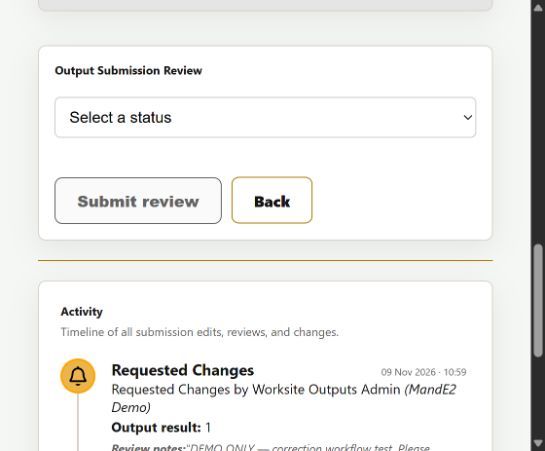
Example from the demonstration workspace.
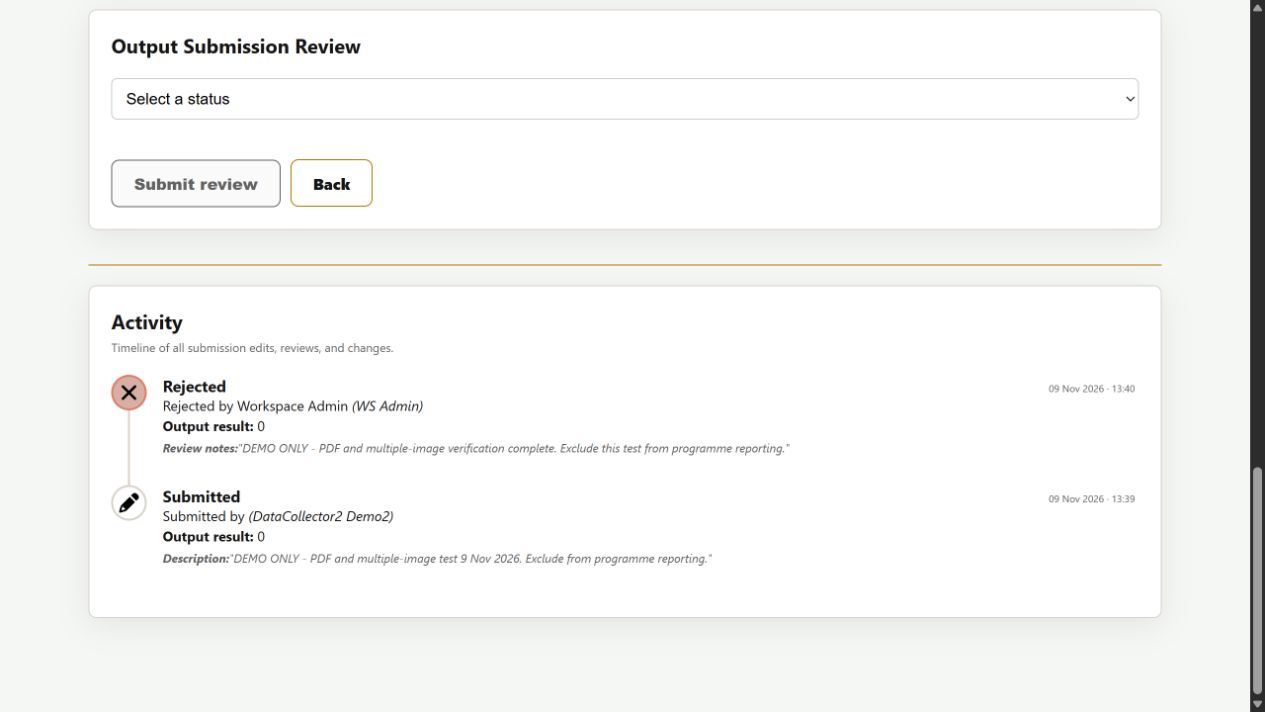
3. Check corrections again
The collector reads your notes, corrects the same record and submits again. Open the latest result and evidence, then review the corrected information according to your SIP’s process.
You should now see Requested Changes followed by Resubmitted in Activity. The newest activity appears first. Earlier approvals remain in the history; they do not replace checking the corrected figures.
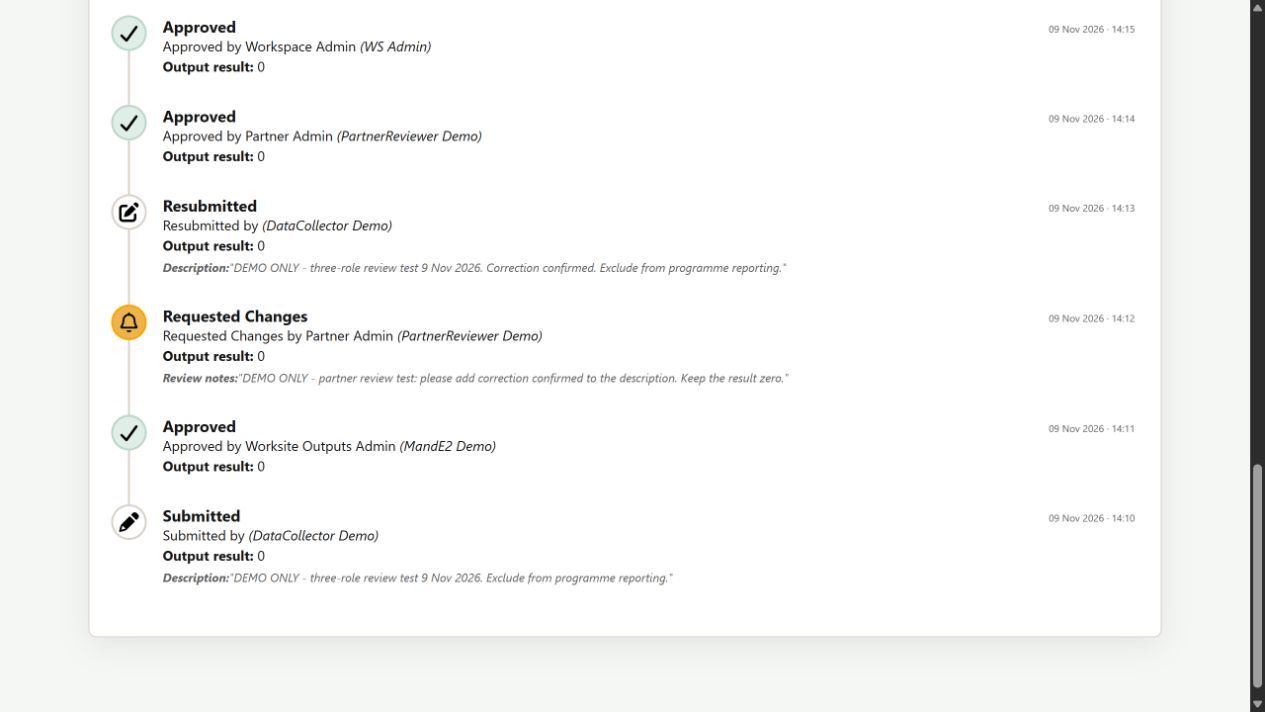
If the status or next reviewer is unclear, ask your workspace admin before final reporting. Do not create a second record to work around a review problem.
Missing records or an absent reviewer
Check the period and filters, confirm the collector submitted the record, and ask your admin to check the reviewer’s assigned Locality or partner.
For a replacement reviewer, agree who takes over outstanding reviews, confirm their access and arrange removal of access no longer needed. Never share another person’s password.
If the record is still missing, contact support with the Locality, indicator and period.
Before final reporting
The SIP reviewer confirms that required reviews and corrections are complete. Practice records must be removed: ask Brownie Points and wait for cleanup confirmation. A TEST label alone does not remove figures from totals.
Next: Final checks and Kwantu sync.
Was this helpful?
Still need help? Ask the team