Complete your SEF Round 5 onboarding
Upload your three reports, check Sites, confirm collectors where needed and submit your setup.
Last updated 6 days ago
Select a screenshot to enlarge it. Example screenshots use fictional details.
The onboarding wizard gives Brownie Points the setup for your workspace. It is separate from monthly output capture. Screenshots below use example data.
Before you start
Check your Kwantu setup, then export fresh SITE01, API01 and API03 Excel workbooks. All three are required, including for CSV SIPs.
1. Sign in
Open QuickTrack onboarding. Use your authorised email address with Google sign-in, or request an emailed security code. Ask Brownie Points to add a colleague’s email if they need access. Never share a code.
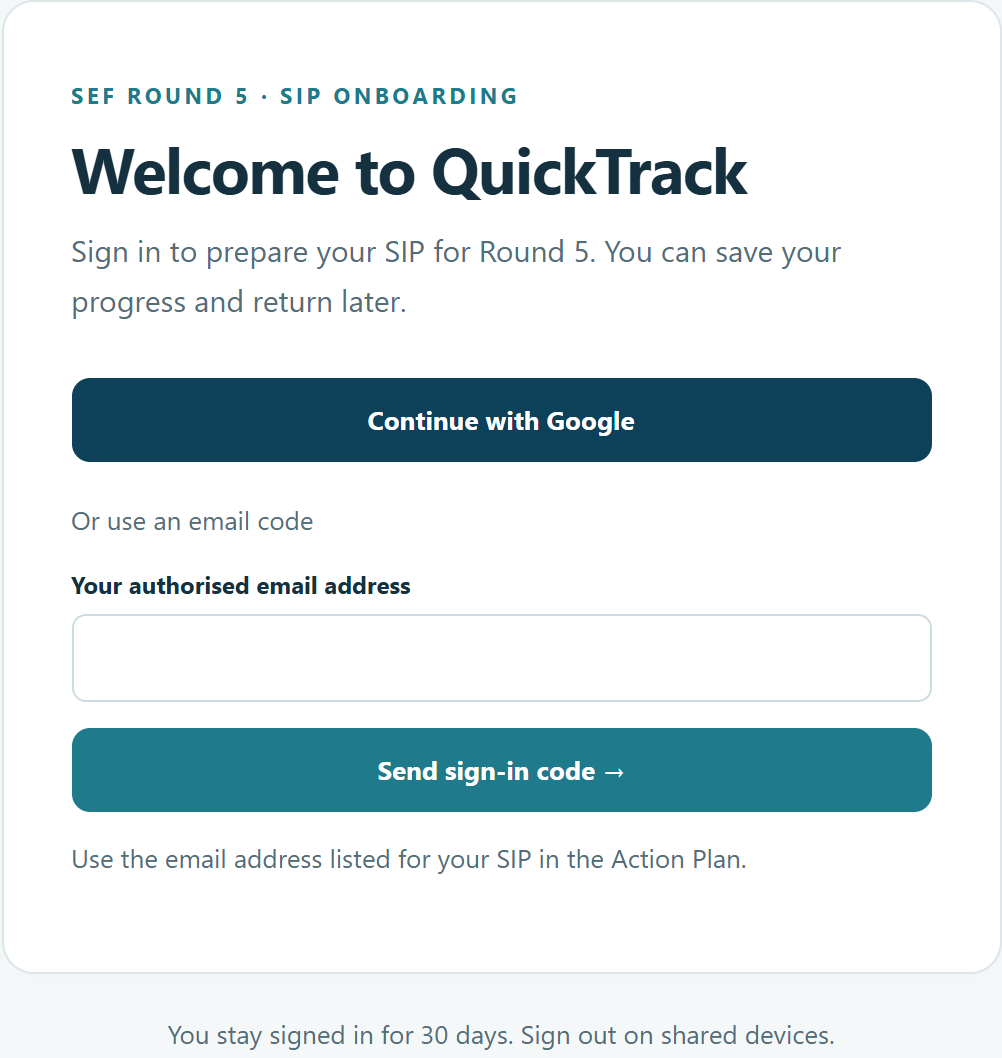
You should now see your SIP’s onboarding workspace. Your invitation to the main Quicksticks platform follows migration.
2. Upload all three reports
Click Choose files and select SITE01, API01 and API03. Then click Upload selected files. Choosing files alone does not upload them.
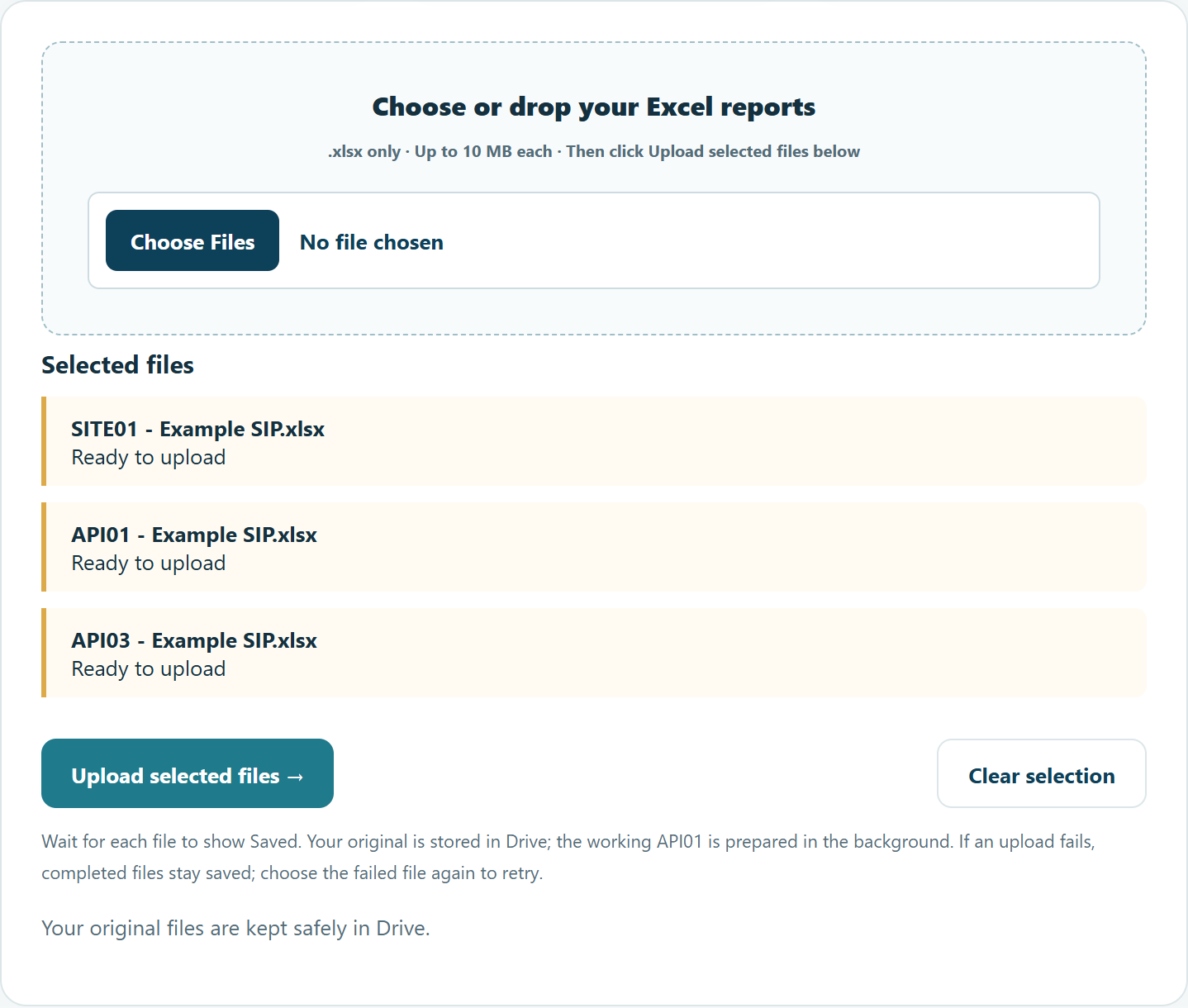
You should now see a result for each file. Wait until all three are saved and checked. Resolve blocking messages before continuing. If one fails, check its result and retry that file; completed uploads stay saved.
3. Review your Sites
Check the Site list and use View details to see Localities. Initial status comes from SITE01’s Is Site Complete: Yes means inactive; No or blank means active. Correct an inaccurate Active switch, then wait for All site changes saved.
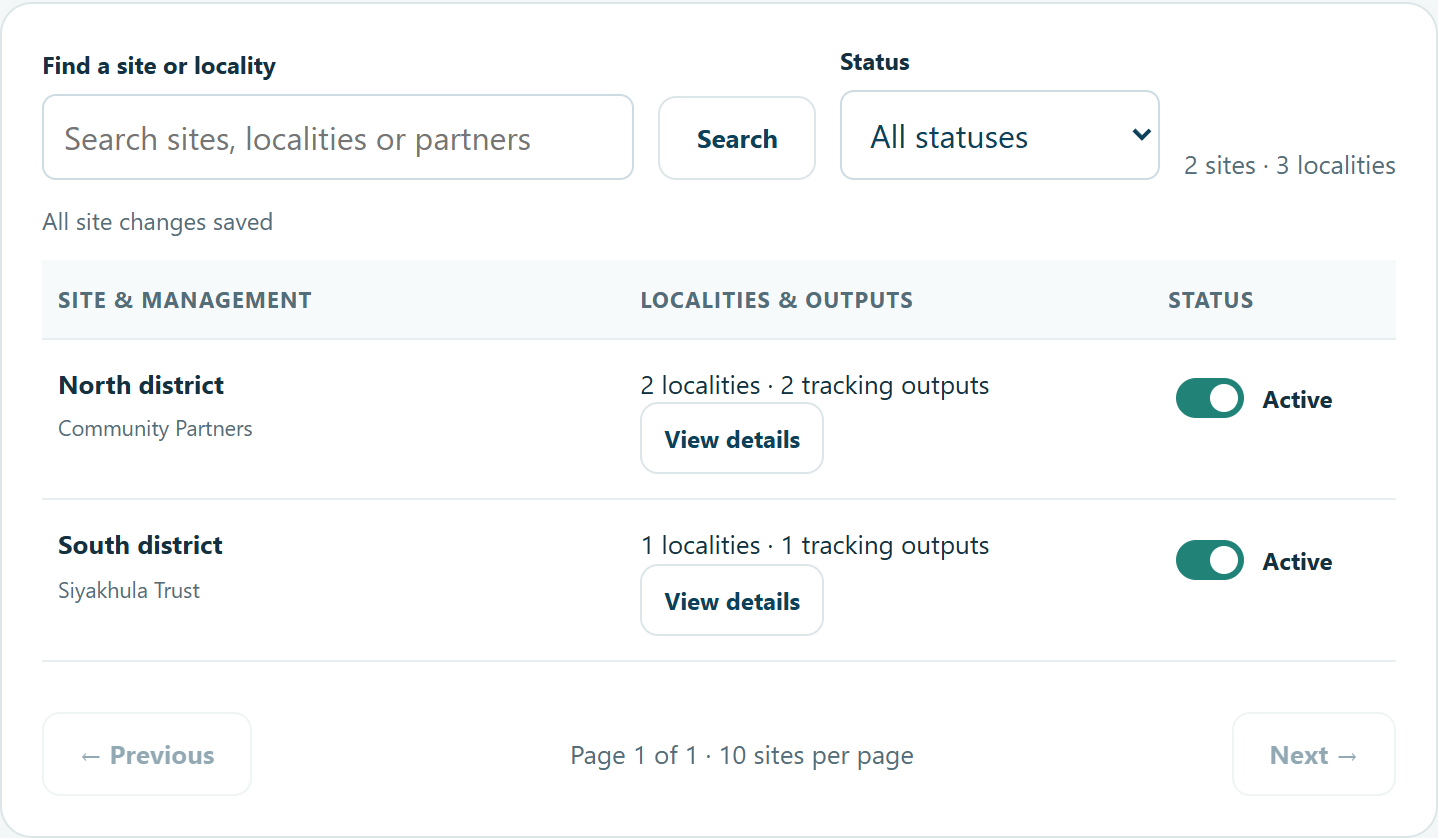
If an old Site name appears, send Brownie Points the old and correct names. We must verify the match before correcting the exports. Use the troubleshooting guide for other messages.
4. Confirm people, if shown
CSV SIPs skip this step according to their registered reporting route. Contact Brownie Points if the route is wrong.
For direct capture, add collectors, choose your starting reviewer setting and assign people to reporting Localities. A reviewer does not need to be added as a collector unless they also enter figures.
Follow Choose collectors and your starting reviewer setting for screenshots and bulk-assignment steps.
5. Review and submit
Check the summary, resolve blockers and tick the confirmation box. Click Submit to Brownie Points.
You should now see confirmation that your submission is saved. Saving a draft is not final submission.
Returning later
Changes save as you go. Finish adding or editing a person with the form’s save button and wait for confirmation before closing the page. You can also use Save draft. An error saying saving is not confirmed means you must check before leaving.
What happens next?
Brownie Points uses the completed pack to prepare your workspace. Your platform invitation follows when it is ready. Then you can check optional settings and invite your team. Wizard submission does not send monthly figures to Kwantu.
Was this helpful?
Still need help? Ask the team