1. Configure
Import your Kwantu setup and add the extra settings QuickTrack needs.
Last updated About 1 hour ago
Your SIP first completes the required Round 5 setup in Kwantu. This is the step most SIPs are working on now.
1. Check your Sites & Localities
Close any Sites or Localities that are no longer active.
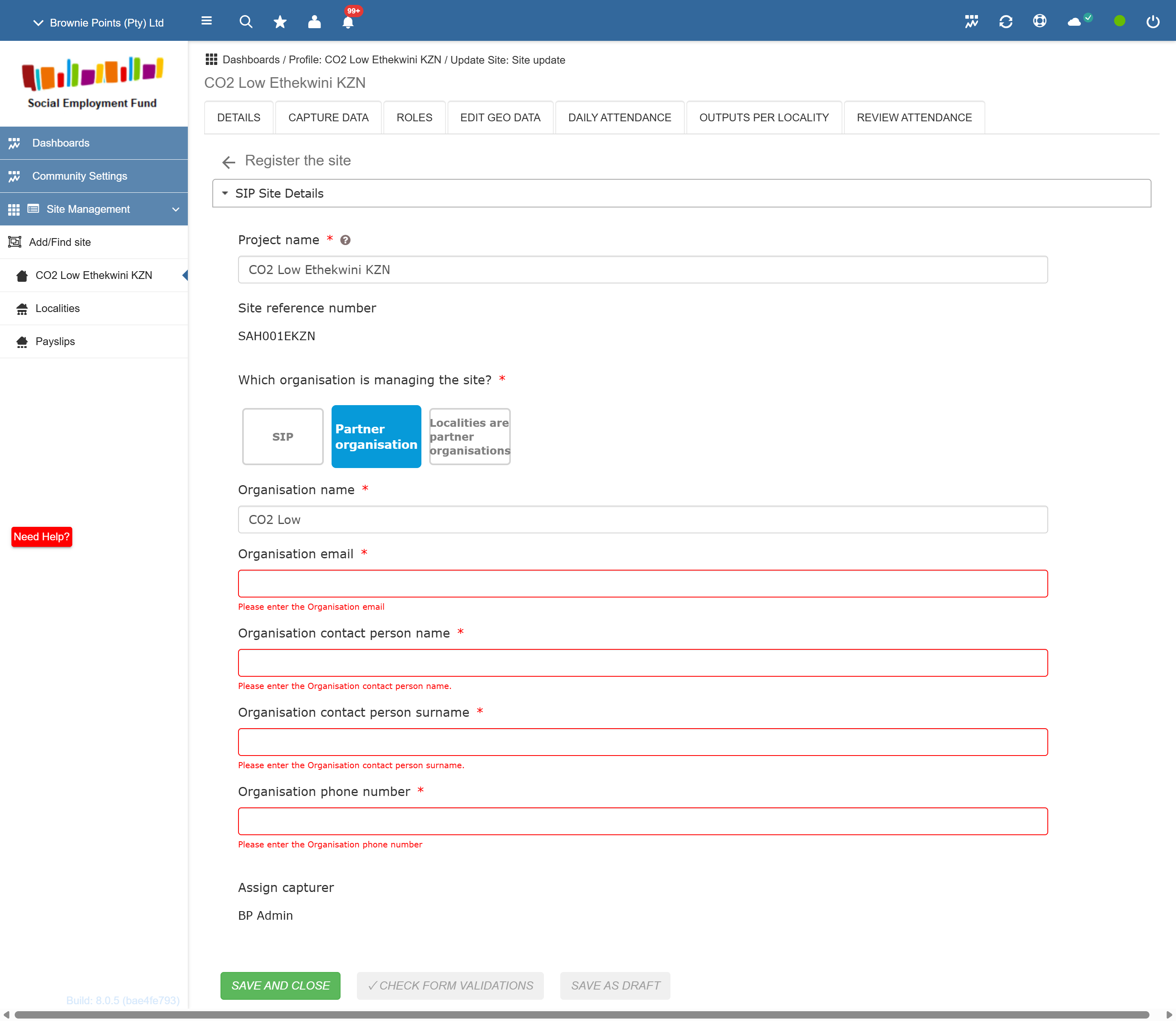
For each Site, confirm who manages it:
the SIP;
a Partner organisation; or
the Localities are managed by Partners.
If a Partner organisation is involved, add:
organisation name;
contact first name;
contact surname;
email; and
mobile number.
2. Create your Reporting Template(s)
Think of a Reporting Template as a reusable checklist.
You decide once what a certain type of Locality must report. You can then link that same checklist to all Localities that do the same type of work.
For example, if several Localities all run the same kind of food-security activity, they can use the same Reporting Template.
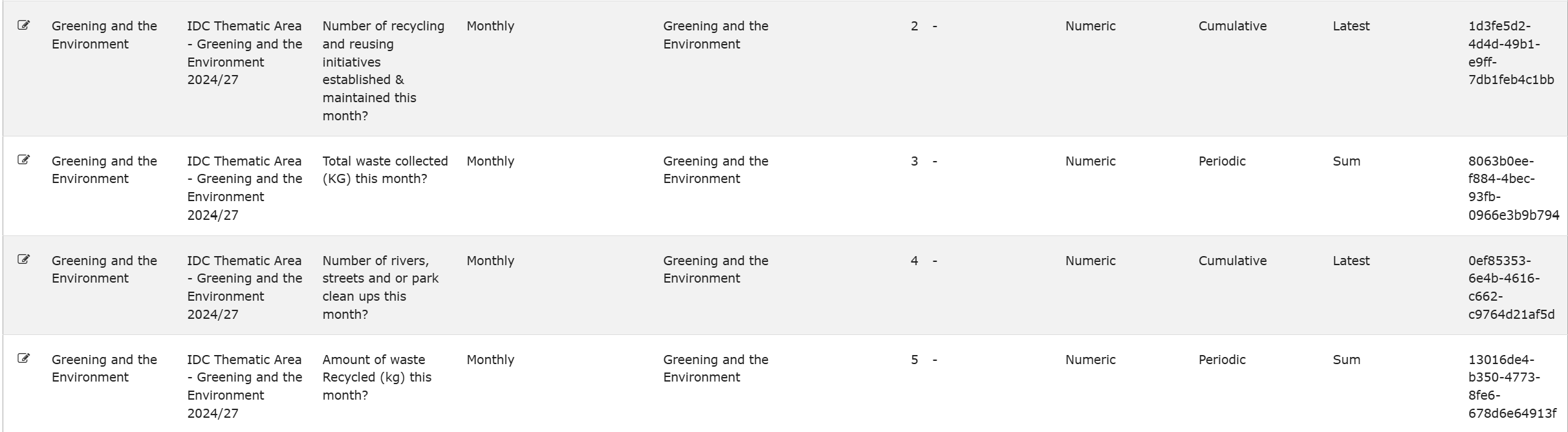
The available indicators are already pulled into Kwantu. For each Reporting Template, you mainly confirm:
a clear template name;
which indicators must be reported;
whether each indicator is reported monthly or daily;
the section it should appear under;
the order of the questions;
any guidance for the person capturing the data; and
whether the indicator is periodic or cumulative.
Your SEF contract dates are pulled through automatically.
3. Link the Reporting Template to each Locality
For every Locality that must report outputs:
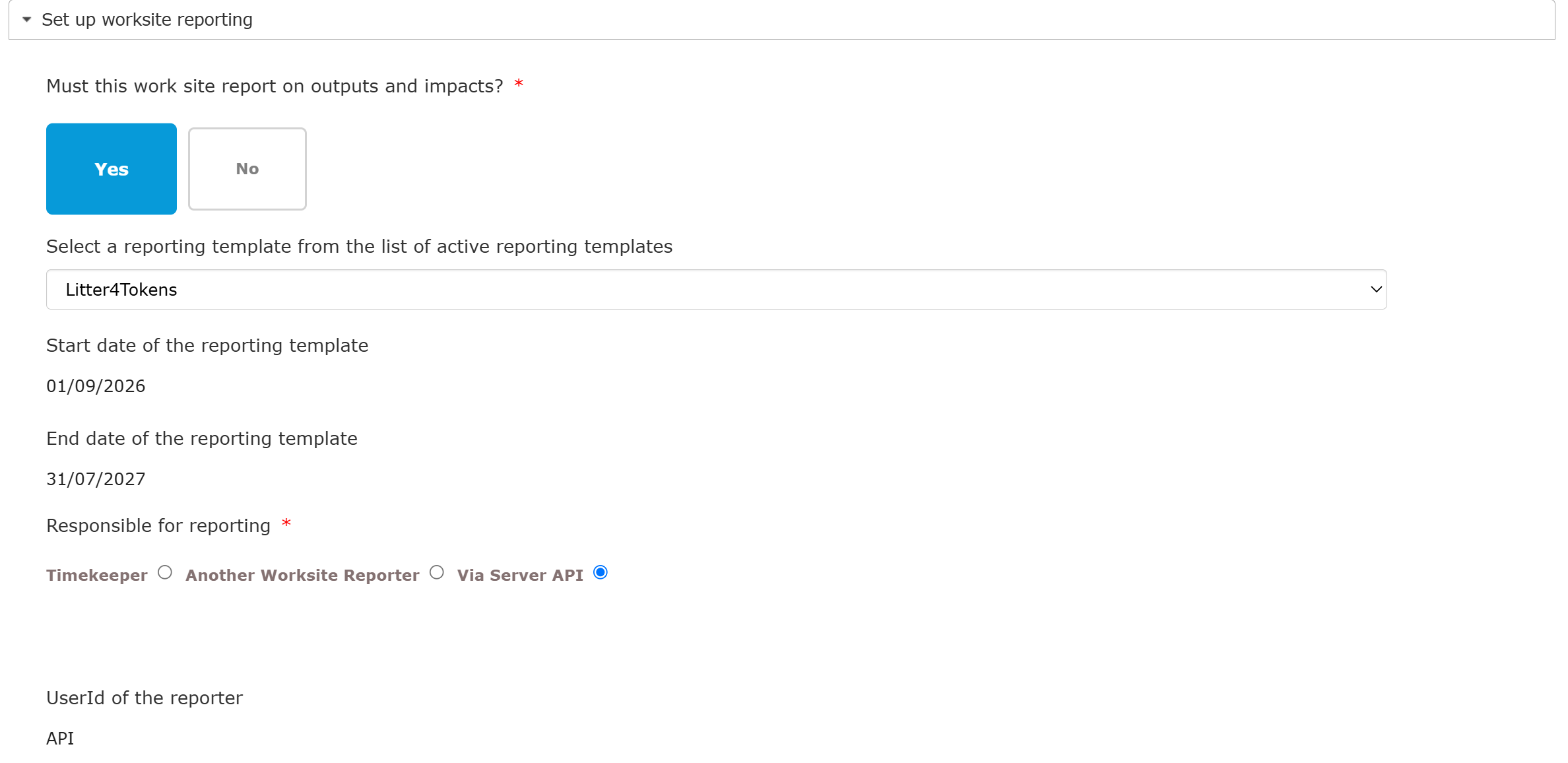
choose Yes when asked whether the Locality must report outputs and impacts;
select the Reporting Template that applies to that Locality; and
choose Via Server API as the reporting option.
This tells Kwantu that the approved reporting for that Locality will be sent through the QuickTrack integration.
What happens next?
Once this setup is complete, Kwantu can provide your SIP-specific settings. Brownie Points then imports that setup into your existing QuickTrack workspace.
You do not start again in QuickTrack. We reuse the Kwantu setup and only add the extra operational detail QuickTrack needs.
4. Complete the extra QuickTrack setup
After the import, most of the shared setup is already there. Your SIP only needs to add or confirm the extra settings that help you manage the work in more detail.
Required to get started
SIP M&E Admin / Reviewer — the person or people who will manage and approve reporting in QuickTrack.
Data Collectors — the people who will capture outputs directly in QuickTrack. One collector can work across several worksites.
Optional settings you can add where useful
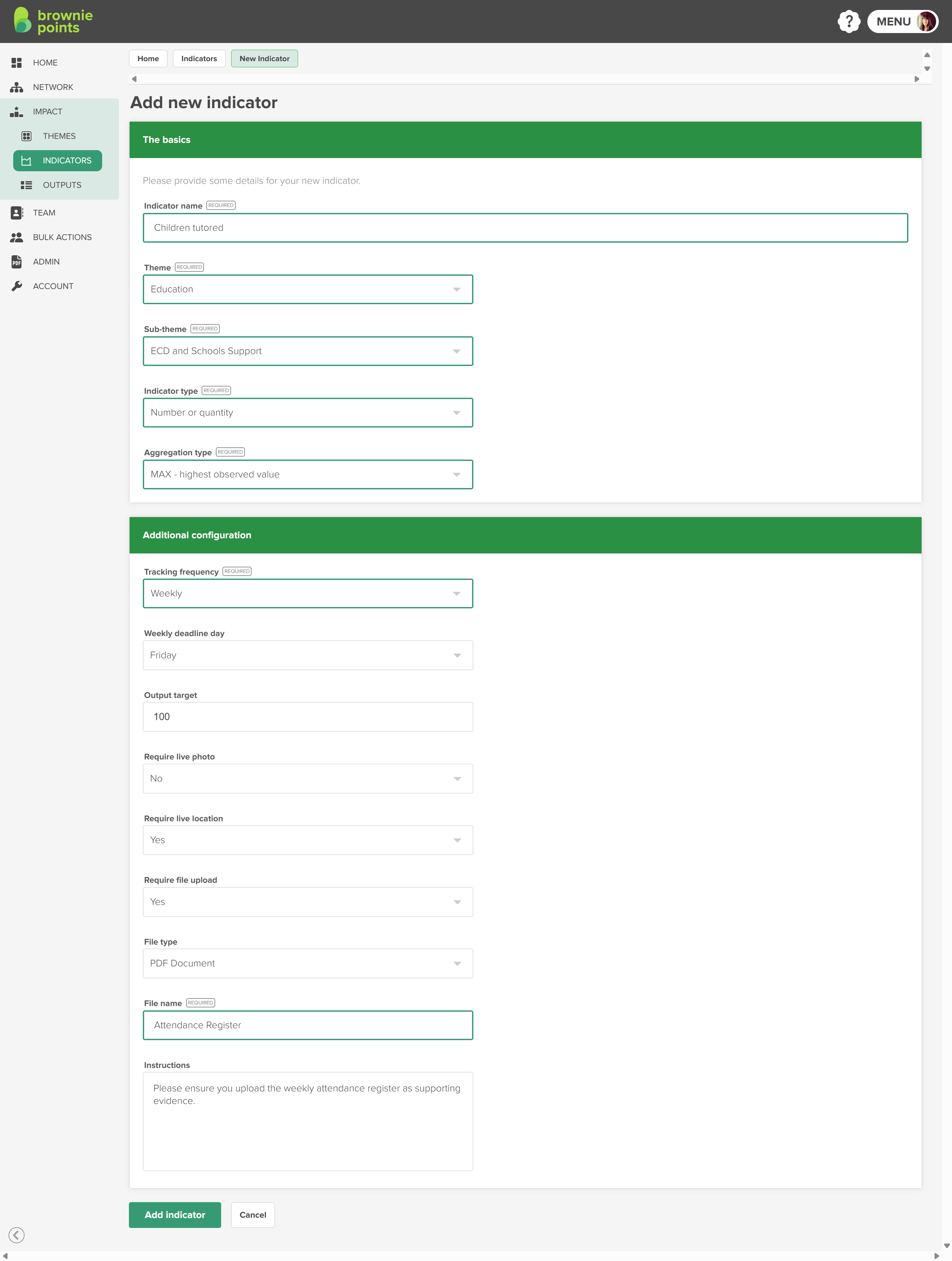
Locality/worksite targets — add more detailed targets below the official SIP / contract target.
Collection frequency — you can keep the official Kwantu reporting frequency (daily or monthly), or set this to weekly.
Reporting deadline — set a deadline so QuickTrack can show what is due or overdue, as well as send automated reminders.
Evidence requirements — choose whether a live photo, image, document or GPS location is required. You can also specify what images or documents you need for verification, including instructions.
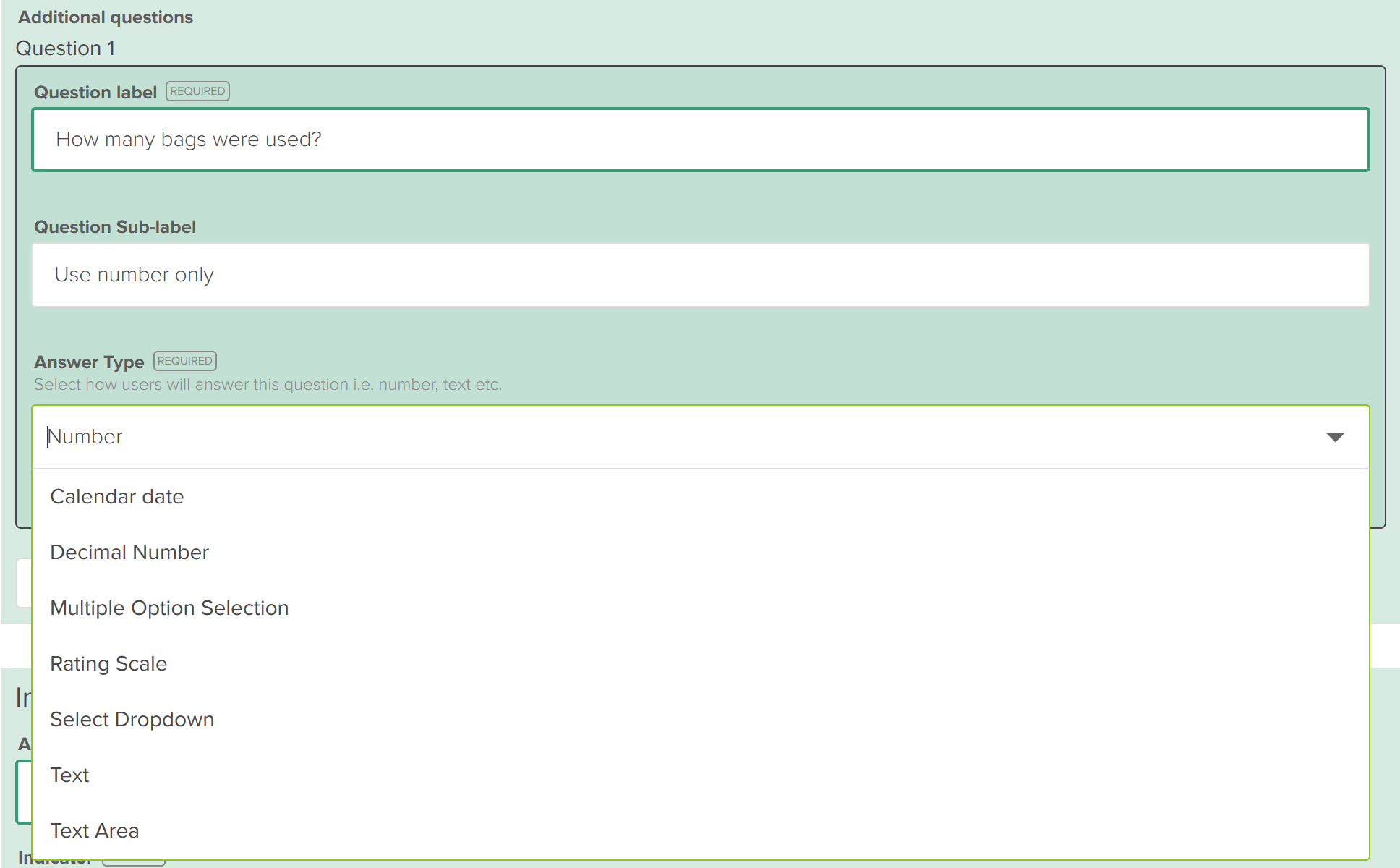
Extra questions — capture useful context or verification information beyond the official indicator.
Custom or non-contracted indicators — track additional operational, admin, financial or M&E measures.
Optional review levels — add worksite, geographic or partner review if this helps improve quality before the SIP M&E review.
The idea is simple: Kwantu provides the official reporting setup. QuickTrack then lets you add the extra operational detail.